
Tuesday, 9:40 PM. A customer opens your website, clicks "Book an appointment", picks Thursday at 10:00, and is done in a minute. The next morning at 7:50, another customer calls. He isn't sure what his bike needs and would rather ask than click through a calendar.
Both want an appointment. They just get there differently.
The booking page only covers one of them
Google Calendar comes with its own booking page. For people who like to book online, it's a good option, and it's free.
It doesn't cover the phone, though. Callers still end up with you, on voicemail, or nowhere. And because Google offers no interface for its booking pages, no other system can book through them either, including a phone assistant.
So the answer isn't "one or the other". The booking page stays for online bookers, FlowCaptain takes the calls, and both write to the same calendar.
What is a Google Calendar appointment schedule?
The feature is called an appointment schedule. You choose the days and times you offer appointments and how long an appointment takes. Google turns that into a booking page with its own link.
Customers open the link, see the open times grouped by day, pick one, and enter their first name, last name and email address. The appointment then shows up right in your calendar.
You can link to that page from your website or embed it there, either as a button with a pop-up or inline on the page.
Where the booking page reaches its limits
For simple cases, the booking page is enough. Once your business needs a bit more, it gets tight:
- One duration per schedule. If you offer a 30-minute consultation and a two-hour service, you need two appointment schedules. A free Google account only gets one booking page.
- Customers have to know what they need. The page doesn't ask follow-up questions. Pick the wrong appointment type and you block the wrong amount of time.
- One schedule, one calendar. The booking page doesn't send an appointment to whichever team member or workstation is free.
- No phone. People who call aren't served by the booking page.
- Booking only. To reschedule or cancel, customers need the link from their confirmation, or they end up calling anyway.
- No conversation. The page can't answer questions like "Do you work on e-bikes?" or "Are you open on Saturdays?"
What FlowCaptain does better on the phone
FlowCaptain is a Phone AI, specialized in appointment management. The assistant answers your calls and works directly with your Google Calendar.
- Services with their own duration. You set up your services once, for example "Service, 120 minutes" and "Consultation, 30 minutes". The caller describes what they need. The assistant recognizes the matching service and finds a slot where it actually fits.
- Multiple calendars. You can connect several calendars, for example one per team member. The assistant offers the open times across all matching calendars and books the appointment with someone who offers the service and is free. If the caller names a person, it looks there first.
- Several appointment types, one calendar. On-site appointments and drop-off appointments can share the same Google Calendar. FlowCaptain plans their times together, so nothing gets double-booked.
- Alternatives in the conversation. If the requested time is taken, the assistant suggests other open times instead of leaving the caller with a "sorry, no".
- Reschedule and cancel by phone. If you turn it on, callers can move or cancel their appointment during the call, no confirmation link needed.
- Answers questions. Opening hours, services, closures, and anything you add to your knowledge base.
- After hours, too. At 7:50 AM, at 7:15 PM, or when both your hands are busy.
Two channels, one calendar
To your calendar, an appointment is an appointment. It doesn't matter whether you entered it yourself, a customer booked it on the booking page, or FlowCaptain booked it on the phone.
When someone books online, that time is taken for FlowCaptain. When FlowCaptain books on the phone, the booking page stops showing that time as open. FlowCaptain also checks the calendar again right before every booking.
That way you offer two channels and still keep a single calendar:
- Online: through the Google Calendar booking page on your website
- Phone: through FlowCaptain, which answers your calls and books directly
If you want to connect your own systems, the same booking logic is available through the API and the MCP endpoint.
How Google Calendar is structured
Before you connect the two, a quick look under the hood helps.
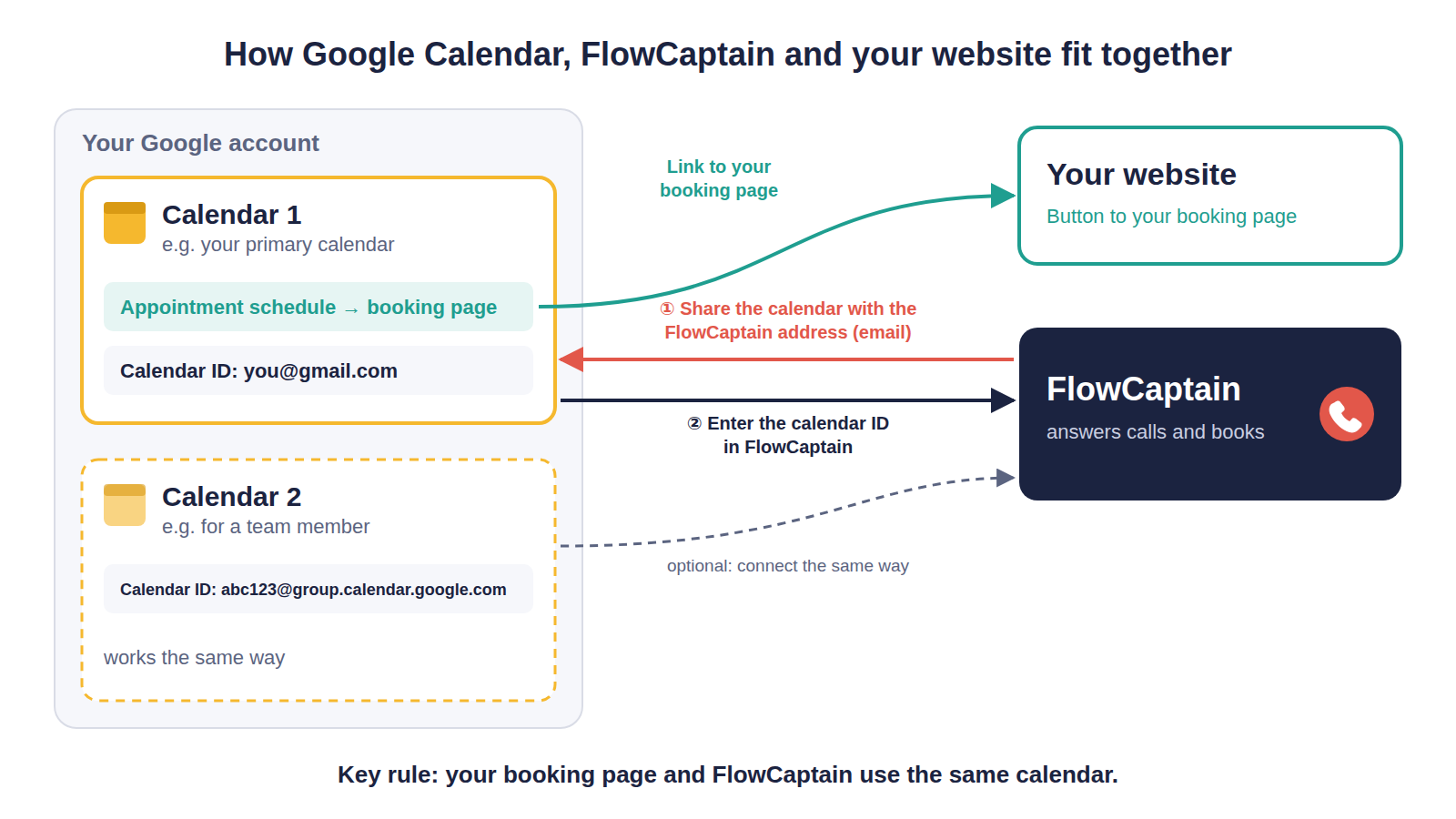
- One Google account can have several calendars. For example, your primary calendar and a second one for a team member.
- Every calendar has a calendar ID. For your primary calendar it's usually your email address. Other calendars have IDs like
abc123@group.calendar.google.com. The ID tells FlowCaptain which calendar you mean. - Access works through sharing. To let FlowCaptain write to a calendar, you share it with the FlowCaptain address, just like you would with a colleague.
- A booking page belongs to one calendar. With a free Google account, that's your primary calendar. Appointment schedules on other calendars require Google Workspace or Google One.
The key rule: FlowCaptain and your booking page must use the same calendar. Otherwise neither sees what the other has booked.
Set up in a few minutes
Step 1: Create an appointment schedule in Google Calendar
- Open Google Calendar in your browser.
- Click Create → Appointment schedule in the top left.
- Set a title, the appointment duration and your available times, then save.
- Copy the link to your booking page.
With a free Google account, the appointment schedule lives in your primary calendar. Connect FlowCaptain to exactly that calendar in the next step.
Step 2: Connect the same calendar to FlowCaptain
- Find the calendar ID: in Google Calendar, click the three dots next to the calendar name, then Settings and sharing → Integrate calendar.
- Enter the calendar ID for your calendar in FlowCaptain.
- Share the calendar in Google: Settings and sharing → Share with specific people or groups → Add people and groups. FlowCaptain shows you the address to add during setup, and you can copy it with one click.
- Set the permission to "Make changes to events" and click Send. Don't pick the similar option that only shows free/busy for private events. It isn't enough.
- FlowCaptain's calendar settings show right away whether the connection works.
The full guide, including troubleshooting, is in the documentation.
Step 3: Match opening hours and services
Set your opening hours and services in FlowCaptain and match them to your appointment schedule. Otherwise your website and your phone will offer different times.
Step 4: Show both options on your website
- A button to your booking page for people who'd rather click
- Your phone number for people who'd rather ask. You keep the number you already have — you forward it to FlowCaptain, and callers never notice the difference (how forwarding works).
You get the number FlowCaptain answers directly in FlowCaptain under Phone numbers. Want to keep your existing number? Set up call forwarding to your FlowCaptain number with your phone provider, and add your number in FlowCaptain as a forwarded number.
Conclusion
Google Calendar's booking page is a good start for people who book online. FlowCaptain takes care of the ones who call, with services, multiple calendars and follow-up questions in the conversation. Both write to the same calendar, and you only have one to keep up to date.
FlowCaptain is currently in Early Access. Everything FlowCaptain can do today is in the changelog.